Tesla publishes the method, so there is no need to guess. Turn on Screen Clean Mode from Controls, then Display, then Screen Clean Mode — the display darkens so dust and smudges are visible and your wiping does not press buttons. Wipe with a soft lint-free cloth. Do not use cleaners and do not use wet wipes. Press and hold Hold to Exit when you are done.
One addition from the owner's manual that catches people: do not use a dry statically-charged cloth, such as a freshly laundered microfibre. A static charge on a cloth is exactly what you do not want against a capacitive display.
The method, step by step
Step 1. Park the car and put it in Park
Screen Clean Mode disables touch input, which is the point, but you should not be navigating menus while moving anyway. Do this with the car stationary.
Step 2. Open Controls, then Display, then Screen Clean Mode
The display darkens. That darkening is doing real work — it is the only way to see where the smudges actually are, because on a lit screen they disappear into the interface.
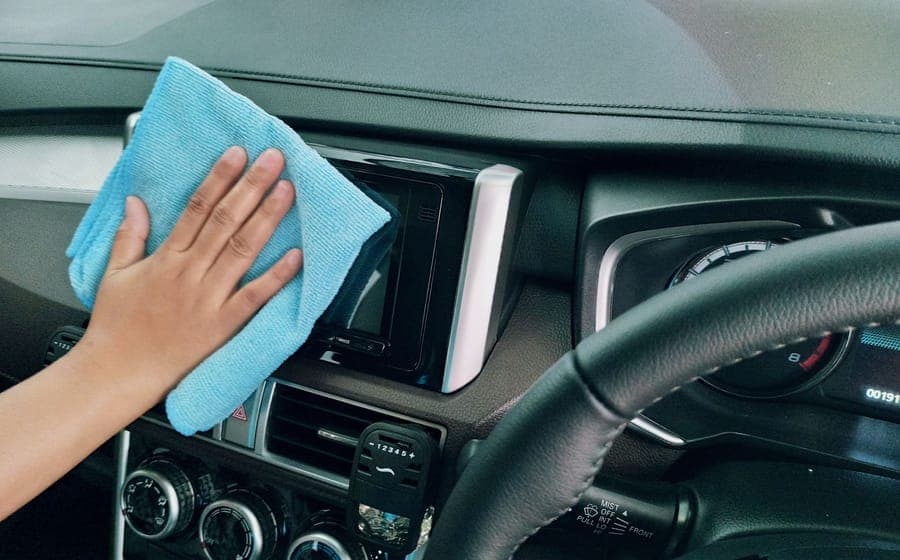
Step 3. Wipe with a soft lint-free cloth, dry
Straight lines rather than circles, light pressure, and work from the top down so loosened dust falls away from the area you have cleaned. If the cloth is new out of the wash, handle it first so it is not carrying a static charge.
Step 4. If something will not shift, dampen the cloth very slightly with water
Water on the cloth, never on the screen, and only enough that the cloth is barely cool to the touch. Then go over the same area with a dry section of the cloth. This is the furthest we would go beyond Tesla's own instruction, which is for a dry cloth.
Step 5. Press and hold Hold to Exit
The hold is deliberate — a tap would be too easy to trigger while cleaning. The screen returns to normal brightness and touch input comes back.
Step 6. Check the bezel and the surround separately
Dust collects at the edge where the glass meets the trim, and that is the one place a cloth will not reach. A dry soft brush is better than pushing a cloth corner into the gap.
What not to use, and why
The screen has a coating. Everything on this list either attacks that coating or leaves a residue that makes the next smudge worse.
| Avoid | Why |
|---|---|
| Glass cleaner and household sprays | Tesla's guidance says to avoid cleaners outright. Ammonia-based products are the worst case for a coated display. |
| Wet wipes | Named specifically in Tesla's guidance as something to avoid. The surfactants leave a film. |
| Freshly laundered microfibre, used dry | The owner's manual warns against a dry statically-charged cloth. Static and capacitive touch surfaces do not mix. |
| Paper towel | Wood fibre is abrasive at this scale and sheds lint into the bezel gap. |
| Alcohol and sanitiser gel | Strips coatings. It is the most common cause of a screen that looks hazy under sunlight afterwards. |
| Spraying anything directly at the screen | Liquid runs to the bezel edge and into the gap, which is the one place you cannot dry. |
Quick picks
| # | Product | Best for | Score | Price |
|---|---|---|---|---|
| 1 |  TOPABYTE screen edge protector frame The compromise for anyone who read Tesla's guidance and decided not to cover the screen. | If you want protection without covering the glass | 8.6 | |
| 2 |  REEVAA 15.4-inch matte anti-glare tempered glass The 15.4-inch matte benchmark, and the alignment frame is why. | If glare is the real problem | 8.7 |
Scores are our editorial assessment of fitment scope, published materials and coverage. They are not lab measurements and we have not tested these products.
1. If you want protection without covering the glass
TOPABYTE screen edge protector frame
A frame that protects the display surround rather than the touch surface, which is the right compromise for anyone who read Tesla's guidance and decided not to put glass over the screen. It is part of a three-piece console accessory set and is listed as compatible with the 2026 Model Y Juniper. It does nothing for the screen face itself, which is the point.
Best for: Owners who want the bezel protected without covering the glass
Fits: Model Y Juniper (2025-2026) · Model 3 Highland (2024-2026) · Model Y (2020-2024) · Model 3 (2017-2023)
What works
- Avoids Tesla's stated concerns entirely, because nothing is applied over the touch layer
- Protects the corner the display is most often knocked against
What does not
- Does nothing about scratches or glare on the glass itself
- Sold as part of a bundle, so you may be buying two pieces you did not want
Manufacturer specifications
- Frame that protects the display surround, not the touch surface
- Part of a three-piece console accessory set
- Listed as compatible with the 2026 Model Y Juniper
Specifications as published by the manufacturer. We have not independently tested this product.
Specification sources: TOPABYTE 3-piece center console accessory set, Tesla Model 3 Owner's Manual (North America PDF) — touchscreen care
2. If glare is the real problem
REEVAA 15.4-inch matte anti-glare tempered glass
9H matte anti-glare tempered glass cut for the 15.4-inch Highland and Juniper displays, supplied with an alignment frame. If you have cleaned the screen properly and the reflections are still the problem, a matte protector is the fix cleaning cannot provide. It also means you are cleaning the protector from then on rather than the factory coating, which is easier.
Best for: Highland and Juniper owners who want glare gone, not just scratches prevented
Fits: Model 3 Highland (2024-2026) · Model Y Juniper (2025-2026)
What works
- The alignment frame is the difference between a clean first attempt and a bubbled mess
- Matte finish genuinely reduces the daytime reflections the glossy panel suffers from
- 15.4-inch cut is stated explicitly rather than left to a model-year guess
What does not
- Matte scatters light, so colors and map detail lose a little crispness
- Does not fit the 16-inch Premium or Performance display — a common and expensive mistake
Manufacturer specifications
- 9H tempered glass, matte anti-glare finish with an anti-fingerprint coating
- 15.4-inch cut, listed for 2024-2026 Model 3 Highland and the 15.4-inch Juniper display
- Supplied with an alignment frame
Specifications as published by the manufacturer. We have not independently tested this product.
Specification sources: REEVAA 15.4-inch matte anti-glare screen protector listing, Model Y screen-size fitment: 15.4 vs 16-inch
If it still looks bad after cleaning, the problem is not dirt
Two things get mistaken for a dirty screen. The first is glare — the Model 3 and Model Y displays sit fairly upright, and in certain sun angles the reflection is of the cabin rather than of grime. Cleaning does nothing for that. A matte protector does, which is the entire reason the REEVAA pick is on this page. Best matte Tesla screen protectors and matte vs glossy cover the choice.
The second is a degraded oleophobic coating, usually from something alcohol-based used once. That shows up as fingerprints that smear rather than wipe, and it does not come back. You cannot reapply a factory coating, so the practical answer is either to live with it or to fit a protector and clean that instead.
The rear screen, and the other screens
Newer cars have more than one display. The Model Y Juniper and the Model 3 Highland both have a rear screen for the back seats, and it is cleaned exactly the same way — but Screen Clean Mode is a front-screen function, so with the rear display you are wiping a live touch surface. Turn the rear screen off from the front display first, or expect to change the back-seat climate setting by accident.
Screen sizes differ by generation, which matters if cleaning leads you toward a protector: 15-inch on the 2020-2024 Model Y and 2017-2023 Model 3, 15.4-inch on the Highland and some Junipers, 16-inch on Model Y Premium and Performance. Tesla screen sizes: 15, 15.4 and 16-inch by year is the reference, and the Model Y Juniper rear screen covers the back display.
How often is worth doing this
Weekly is plenty for most cars, and more often than that is counterproductive — every wipe is light abrasion, and a coated display that is cleaned daily will haze before one that is cleaned when it needs it. The exception is a car with children in it, where the question is not dust but handprints, and a quick pass with a dry cloth whenever you notice is better than a thorough clean once a month.
Keep one dedicated cloth in the car, in a bag, and use it only for the screen. The reason is not fussiness: a cloth that has wiped a dashboard carries silicone from whatever was used on the plastic, and that is what leaves a screen looking smeared no matter how carefully you work.
Questions people actually ask
How do you clean a Tesla touchscreen?
Enable Screen Clean Mode from Controls, then Display, then Screen Clean Mode. The display darkens so smudges are visible and touch input is disabled. Wipe with a soft lint-free cloth. Tesla's guidance says to avoid cleaners and wet wipes, and the owner's manual warns against a dry statically-charged cloth such as freshly laundered microfibre. Press and hold Hold to Exit when finished.
Can I use glass cleaner on a Tesla screen?
No. Tesla's own guidance is to avoid cleaners. Glass cleaners, and especially anything ammonia-based, attack the coating on the display. If a dry cloth is not enough, dampen the cloth very slightly with water — never spray anything at the screen.
Where is Screen Clean Mode on a Tesla?
Controls, then Display, then Screen Clean Mode. To leave it, press and hold Hold to Exit. The hold is deliberate so you cannot exit by brushing the screen while cleaning it.
Why does my Tesla screen still look smeared after cleaning?
Usually one of three things: glare rather than dirt, a cloth carrying silicone from a dashboard product, or a coating already degraded by something alcohol-based. Glare needs a matte protector, the cloth needs replacing with a screen-only one, and a degraded coating does not come back.
Can I use a microfibre cloth on a Tesla screen?
Yes, as long as it is not freshly laundered and still carrying a static charge — the owner's manual warns specifically against a dry statically-charged cloth. Handle it first, or use one that has been out of the wash for a while.
How do I clean the rear screen?
The same way, but Screen Clean Mode is a front-display function, so turn the rear screen off from the front display before wiping or you will change back-seat settings by accident.
Sources
- Tesla — Interior Cleaning Tips: Screen Clean Mode, soft lint-free cloth, and the warnings against cleaners, wet wipes and dry statically-charged cloths
- Tesla Model Y screen size and fitment by generation
- Does a Tesla need a screen protector — independent discussion of coatings, adhesion and removal
- REEVAA 15.4-inch matte anti-glare tempered glass with alignment frame
- TOPABYTE screen edge protector frame — protects the display surround rather than the touch surface
Specifications and fitment claims on this page come from the manufacturer and retailer pages listed above. We have not tested these products and do not claim to have.
Read next

Guides
Do You Need a Tesla Screen Protector?
The case for and against, separated by what you are actually worried about — scratches, glare or fingerprints.
Guides
How to Remove a Tesla Screen Protector
A step-by-step method for removing tempered glass or film from a Tesla display, plus what actually works on leftover adhesive.
Screen Protectors
Best Matte Tesla Screen Protectors
Anti-glare matte glass for the Model Y and Model 3 displays: the real options, the sharpness you trade away, and which size your car takes.
Screen Protectors
Tesla Model Y and Model 3 Screen Sizes by Generation
The full display-size reference: 15, 15.4 and 16-inch, with resolutions and how to confirm yours.
Guides
Does a Screen Protector Void Your Tesla Warranty?
Exactly what Tesla's manual says about touchscreen protectors, what it means for warranty cover, and the alternatives.
Screen Protectors
Install a Tesla Screen Protector Without Bubbles
A step-by-step install method for a large protector: dust control, alignment and bubble recovery.